Browser info for your current session
Try Browser Info
Loading calculator. If this message stays visible, enable JavaScript and reload.
Your result
On this page
- Browser Info fields and missing values
- Browser Info snapshot and support records
- Browser Info user-agent interpretation
- Browser Info preferred-language limits
- Does the online-status line prove that the internet works?
- How can I compare two browsers without drawing the wrong conclusion?
- What should a clear support report include besides these fields?
- What are the tool’s privacy and accuracy limits?
- Frequently asked questions
- Sources
Worked example
Choose Calculate / Run in a browser that reports the illustrative values shown on this page: User agent “TestBrowser/7.0”, Preferred language “en-IN”, and Online status “Online or unknown”. The report lists exactly those three labelled lines: nothing else. It does not show an IP address, screen size, or installed software, and “Online or unknown” only means the browser’s online flag was not exactly false; it is not a test that any website can be reached.
How to use Browser Info
Open this page in the browser connected to the issue and choose Calculate / Run. Copy the three reported lines: user agent, preferred language, and online status: into your support note together with the time, the page that failed, and the steps that produced the problem, and re-run the Browser Info after a connection change or a browser update for a fresh snapshot.
Related tools
- Screen Resolution Checker: measure the screen’s pixel dimensions.
- Viewport Size Checker: measure the browser viewport for a layout report.
- URL Parser: inspect the parts of a link that is failing.
Browser Info shows three details reported by the browser running this page: its user-agent string, preferred language and online-status flag. Choose Calculate / Run to read the current values. There is no file to select and no account information to enter.
Use the result as context for a support report or a compatibility check. It is a small session snapshot, not a complete hardware inventory, a network test or proof of an exact device model. The explanations below show what each field can tell you and where further testing is needed.
Understanding the Browser Info report
Browser Info fields and missing values
The main result says Browser information. Under it, three labelled lines display the user agent, preferred language and online status. The function reads these values from the browser's navigator object when you run it.

There is no automatic lookup of a public IP address, internet provider, physical location or installed software list. The Browser Info also does not test cookies, inspect browsing history or grade whether the browser is up to date. Its deliberately narrow output makes it useful when you only need these particular observations.
| Result field | Illustrative value | How to use it |
|---|---|---|
| User agent | TestBrowser/7.0 | Record the reported string as one compatibility clue |
| Preferred language | en-IN | Note the language setting exposed to the page |
| Online status | Online or unknown | Treat it as a connection hint, not a server-reachability test |
TestBrowser/7.0 is a synthetic example used to check the output, not a claim that your device will report that value. The real result depends on your current environment. If the browser does not supply a non-empty user agent or language, the relevant line says Not available.
Keep field labels with their values when sharing an observation. A language tag or a long version-like string without a label can be misread by someone who did not see this page.
Browser Info snapshot and support records
- Open the page in the browser associated with the issue.
- Choose Calculate / Run to generate the three result lines.
- Read the labels and note any missing values.
- Copy the relevant output into your support notes.
- Add the time, affected page and steps that produced the issue.
A result from a different browser may be useful for comparison, but it is not a substitute for the environment in which the failure occurred. If the problem appears inside an app's built-in browser, a result collected in a separate desktop browser describes a different setting.
The on-page Copy result control copies the displayed report when clipboard access is available. Download CSV creates a record of the current result. Neither action produces a diagnostic trace, a screen recording or a list of failed requests.
Save as baseline can retain a result for an on-page comparison. Because this output consists of text labels rather than one numeric measurement, do not expect a meaningful percentage increase or numerical difference. Compare the actual lines.
For a layout report, add measurements from the Screen Resolution Checker. Those are separate observations; Browser Info itself does not include screen width, screen height or viewport dimensions.
Browser Info user-agent interpretation
The User agent line reproduces the string exposed through navigator.userAgent. MoneyOr does not turn it into a separately verified browser name, operating-system version or device model. It also does not check a release database to decide whether an update is available.
A string can contain several product names and version tokens. Reading one familiar word from it is not enough to establish the precise browser engine or hardware. Browsers may reduce or alter the information they expose, and testing tools can override it.
MDN's userAgent reference explains the property's role and warns that browser detection based on the string is unreliable. For application code, checking whether a needed feature is available is generally more useful than assuming its presence from a browser label.
For a support ticket, preserve the full reported string if the support team needs it, but describe it as reported rather than verified. Pair it with observable behaviour: which control failed, what appeared instead and whether the issue could be repeated.

The Browser Info does not rewrite the user agent or switch the browser into another mode. If a development tool is deliberately emulating a different environment, record that fact in your notes. An emulated string and a test on the actual target device answer different questions.
Browser Info preferred-language limits
The Preferred language line reads navigator.language. It can be a short tag such as en or a language-and-region tag such as en-IN. The displayed tag is a browser-provided preference, not a test of what languages a person speaks.
It does not establish physical location, nationality, time zone or billing country. A person can use an English-language browser in many places, and the same device can have settings selected for work, testing or personal convenience.
The page reads one preferred-language value. It does not show a complete ordered list of language preferences, inspect every request header or tell you which language a particular website has chosen for its content.
MDN's language reference describes the value as a language tag. In a troubleshooting report, that tag can help explain why a site presents certain language-dependent behaviour. It does not by itself prove that the site correctly used the preference.
If an issue concerns a date, decimal separator or translated label, include the actual text you saw and the expected result. Two reports that both say English can still omit the detail needed to reproduce a formatting issue. Browser Info records the reported preference; you supply the concrete example and the application context.
Does the online-status line prove that the internet works?
No. The function prints Offline only when navigator.onLine is exactly false. Otherwise it prints Online or unknown. That includes a true value as well as an unavailable value. The wording avoids treating the absence of an offline flag as a successful connection test.
The operation does not request an affected website, time a response, query DNS or measure bandwidth. A result cannot tell you that a particular login server, file download or application endpoint is reachable.
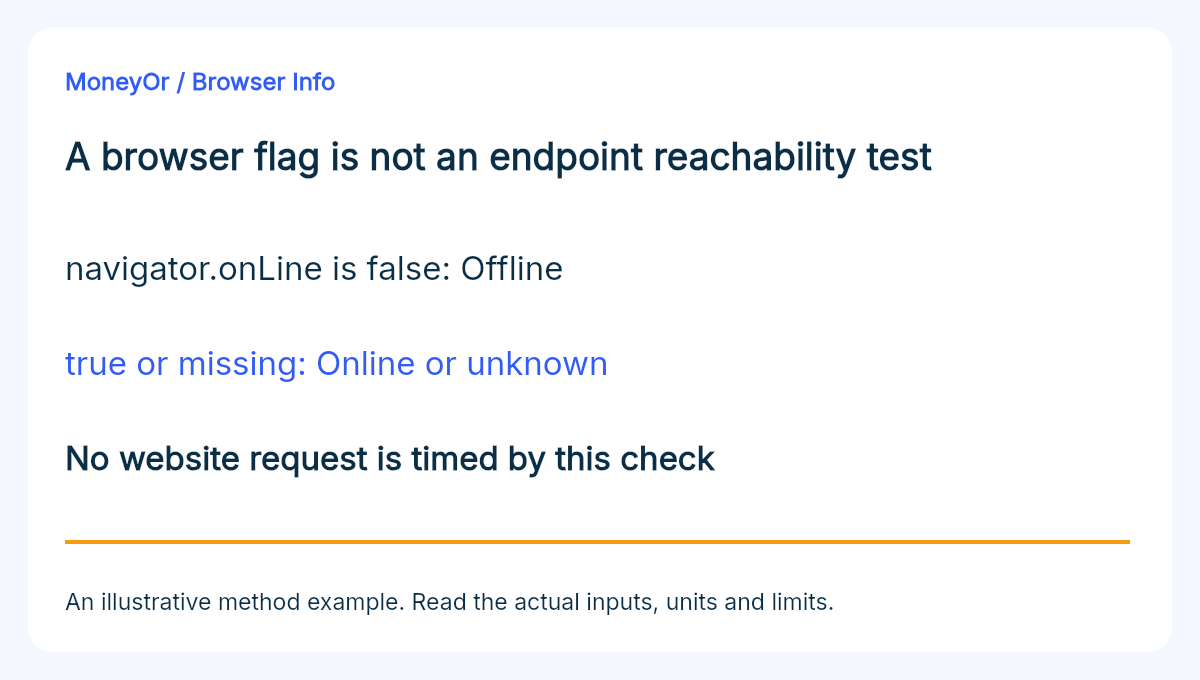
MDN's onLine reference explains that browsers and operating systems use different connection heuristics. A local network connection can exist without a working route to the wider internet. Treat this property as a hint alongside direct observations.
In a support report, write down the exact page that failed and the visible error. If other pages load, say which ones. Do not replace those observations with a general statement that the internet is definitely working because this line did not say Offline.
Run the Browser Info again after a connection change if you want a new snapshot. This implementation reads the value when invoked; it is not a live network monitor with a timeline or an automatic alert. A saved result describes the moment it was collected, rather than every later connection state.
How can I compare two browsers without drawing the wrong conclusion?
Use the same reproduction steps in each environment. Record the affected page, action, visible outcome and time. Then collect the browser details in each browser separately. This gives the comparison a common task instead of just two unrelated strings.
Change one condition at a time where practical. If you switch browser, device, account, network and page version together, a different outcome cannot be assigned confidently to one of those changes. Browser Info does not perform that experiment for you; it supplies a few observations to include in it.
For visual problems, also record the viewport dimensions. A narrow window and a wide window may use different page layouts even in the same browser. The Viewport Size Checker reads that separate measurement.
For a link problem, keep a non-sensitive version of the affected address and check its structure with the URL Parser if useful. Remove private tokens before putting an address in shared notes. A parser describes URL components; it does not prove that a destination is available.
A successful test in another browser narrows the investigation, but it does not prove the first browser is defective. Cached application state, extensions, permissions or a different session can be relevant. Keep conclusions proportional to what you actually tested.
What should a clear support report include besides these fields?
Start with the task and the failure. For example: after selecting the download button, the result area stayed unchanged. Then list the smallest sequence of actions needed to reproduce it. Avoid replacing a concrete observation with a broad description such as everything is broken.
Include the expected outcome, actual outcome and whether the behaviour repeats. If an error message appears, preserve its wording. The browser-information lines can follow as environment details rather than becoming the whole report.
Add only relevant measurements and evidence. A layout problem may need the viewport size and a cropped screenshot. A language-formatting issue may need the reported language and an example value. A failed request may need a status or error visible in an appropriate developer tool.
Check screenshots and copied text for personal information before sharing them. A useful report does not need account passwords, session cookies, payment details or unrelated tabs. Browser Info asks for none of those items.
If reporting a problem with a MoneyOr tool, use the contact page and identify the Browser Info and steps. The presence of a browser snapshot does not submit a report automatically. You choose what to share and provide the explanation that makes the observations actionable.
What are the tool’s privacy and accuracy limits?
The inspected function reads three local browser properties. It does not call an external device-identification endpoint to generate this result. Reading these properties is different from verifying them against hardware or network records.
Page delivery, analytics and other site operations are separate from this function. Review the MoneyOr privacy policy for those practices. A local calculation statement is not a promise that a browser extension, managed device or wider browsing environment cannot observe activity.
The output can be reduced, altered or missing. A value labelled Not available is an honest fallback rather than a reason to invent an answer. Likewise, Online or unknown deliberately groups states that the Browser Info cannot distinguish more precisely.
These observations are useful when connected to a reproducible problem. They are insufficient for identifying a person, proving a location, auditing every browser setting or certifying compatibility with an application. Use the application's own requirements and appropriate tests for those decisions.
Keep an old snapshot only as historical context. After updating a browser or changing its language settings, collect a fresh result if those details matter. The page does not maintain a permanent inventory of your device or a saved history across future visits.
Frequently asked questions
Does Browser Info show my public IP address?
No. The implemented output contains user agent, preferred language and an online-status label. It does not contact an IP-discovery service or display a public IP field. Other websites may offer broader diagnostics, but those are separate capabilities from the Browser Info.
Can this tell me whether my browser needs an update?
There is no update-check database or supported-version comparison here. The tool reproduces the reported user-agent string without certifying its exact version. Check update information through the browser’s own normal settings and official support resources.
Why does the result say Online or unknown?
The implementation uses that label whenever the online property is not exactly false. It therefore covers both a reported online state and an unavailable flag. It is intentionally broader than a confirmed successful request to a particular website.
Can I run the tool without creating an account?
Yes. There is no tool account or registration field in this workflow. Open the page and run it to read the current browser properties. You do not need to enter personal profile details, a password or a file.
Will it change my language or browser settings?
No. The function reads the reported properties and displays them. It does not change the browser language, install an extension or modify a network setting. Any deliberate setting change must be made through the appropriate browser or device controls.
Why are the values different inside another app?
A built-in browser can expose a different environment from your usual standalone browser. Collect the result where the issue occurs and label the context. A snapshot from a different app is useful as a comparison, not as proof of the first environment’s properties.
Can I use this to identify a visitor or device reliably?
No. These are limited browser-reported observations and may be reduced or altered. This page is not an identity-verification or hardware-inventory service. Do not treat a matching language tag or user-agent string as evidence that two sessions belong to the same person.
Does copying the result send it to support?
No. Copying places the report on your clipboard when permitted. A CSV download saves a local record. Neither control creates a support ticket. Review the details, remove anything unnecessary and share them through the support channel you intend to use.
Sources
- Mozilla MDN, Navigator: userAgent property. Reference checked 26 November 2026.
- Mozilla MDN, Navigator: language property. Reference checked 26 November 2026.
- Mozilla MDN, Navigator: onLine property. Reference checked 26 November 2026.