Image resizer for proportional width reduction
Try Image Resizer
Loading calculator. If this message stays visible, enable JavaScript and reload.
Your result
The image resizer reduces a JPEG, PNG or WebP image to a maximum width while keeping its proportions. Select one file, enter the width in pixels and choose JPEG, PNG or WebP output. The height is calculated from the original image rather than entered separately.
The Image Resizer does not enlarge a smaller image to meet a larger requested width. It creates a new downloadable copy in your browser. Keep the original, and check the saved result for detail, transparency and suitability for the place where you intend to use it.
On this page
- Image Resizer output and width limits
- Image Resizer steps and saved files
- Image Resizer dimensions and rounding examples
- Image Resizer supported formats and size checks
- How do I choose JPEG, PNG or WebP output?
- Will resizing preserve quality, animation and metadata?
- How can I prepare an image for a website or upload form?
- What should I do if resizing fails?
- Frequently asked questions
- Sources
How to use the Image Resizer
Image Resizer output and width limits
The image resizer can reduce an image's pixel dimensions and re-encode it in one of three supported output formats. Its width setting is a ceiling. If an image is already narrower than that ceiling, the tool keeps its current width and calculates the corresponding height.
There is no separate height field, crop box, rotation control or social-platform preset. The Image Resizer does not stretch an image to fill an arbitrary rectangle. It scales the whole decoded image proportionally rather than choosing which subject to keep inside a crop.
The result reports Image ready followed by the output width and height. Detail lines show original size, output size and output MIME type. The size figures use KiB, with one KiB representing 1024 bytes. File dimensions and storage size are different measurements: an 800-pixel-wide image does not have a predetermined number of kilobytes.
The operation handles one source file at a time. It is not a batch queue or an image editor with layers, text tools and background removal. Use it when a smaller proportional copy is the task, and choose a more suitable workflow when the required change is an exact crop, an enlargement or a design composition.
Image Resizer steps and saved files
- Choose a JPEG, PNG or WebP file from your device.
- Enter a whole-number maximum width between 1 and 8000 pixels.
- Select the output format.
- Choose Process image.
- Read the reported dimensions and file sizes.
- Download the generated image and open the saved copy.
The default maximum width is 800 pixels, and the default output format is JPEG. Those starting choices are not a recommendation for every photograph, logo or upload form. Set them according to the actual destination requirements.
The download name is based on the original file name with -moneyor added before the output extension. For example, a source named photo.png exported as WebP is named photo-moneyor.webp by the Image Resizer. Your browser may alter a duplicate download name when a file already exists.
File outputs have a download control rather than the generic CSV result workflow. A copied text summary is not the resized picture. Save the actual generated file and check that file in the destination application.
Do not overwrite your only original while experimenting. A reduced image cannot provide all the source detail if you later need a larger version. Retain a clearly named original and make each candidate from that source.
Image Resizer dimensions and rounding examples
The output width is the smaller of the requested maximum width and the decoded original width. The output height is the original height multiplied by the output-width-to-original-width ratio, rounded to the nearest whole pixel. The height is kept at a minimum of one pixel.
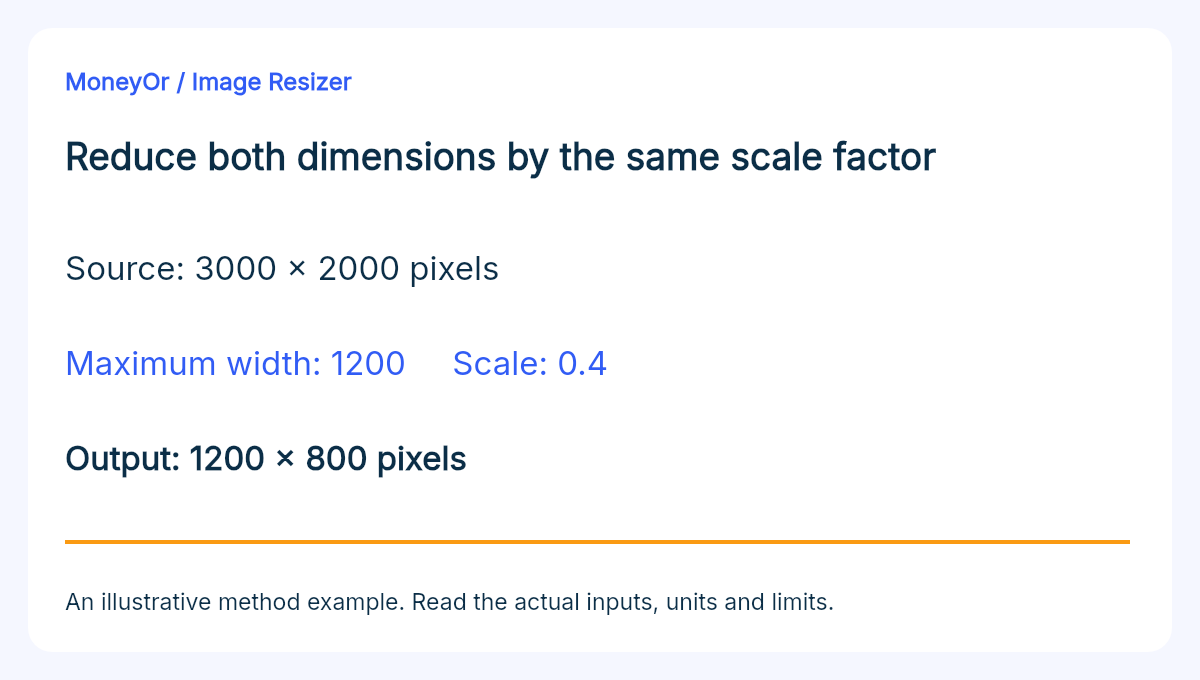
For a 3000 × 2000 image with a maximum width of 1200, the scale is 1200 ÷ 3000 = 0.4. The height becomes 2000 × 0.4 = 800, producing 1200 × 800 pixels. The whole image is reduced; the sides are not cut away.
| Original pixels | Maximum width | Calculated output pixels |
|---|---|---|
| 3000 × 2000 | 1200 | 1200 × 800 |
| 3000 × 2000 | 800 | 800 × 533 |
| 1001 × 667 | 500 | 500 × 333 |
| 600 × 400 | 800 | 600 × 400 |
The 533- and 333-pixel heights illustrate integer rounding. A digital image cannot have a fractional stored pixel row. Very small outputs can therefore have a proportion that is only an integer-pixel approximation of the source.

These examples were checked against the Image Resizer's dimension calculation using synthetic image fixtures. They describe dimensions, not a promise about the visual appearance or encoded byte size of every file with those dimensions.
Image Resizer supported formats and size checks
The input must be reported as image/jpeg, image/png or image/webp and must be decodable by the browser. JPG and JPEG are common file-name extensions for the JPEG format. A supported-looking extension alone does not establish that the file contains valid image data.
The size check permits up to 20 × 1024 × 1024 bytes, or 20 MiB. The validation message currently calls this 20 MB, but the implemented threshold is 20,971,520 bytes. A larger source is rejected before decoding.
The requested width must be an integer from 1 to 8000. The resulting width multiplied by height must be at most 25,000,000 pixels. A tall image can exceed that area limit even when its width appears modest.
A 5000 × 5000 output is exactly 25,000,000 pixels and meets the area check. A 6000 × 6000 output has 36,000,000 pixels and is rejected. These are dimension limits, not a guarantee that every device has enough memory to process every permitted source.
There is no GIF, SVG, HEIC, TIFF, RAW or PDF input option. For an image stored inside a PDF, the PDF to PNG and PDF to JPG pages serve a separate conversion task. Inspect any conversion before using it as a new image source.
How do I choose JPEG, PNG or WebP output?
Choose according to the receiving application's supported formats and the image's requirements. This page offers all three formats, but the browser must actually be able to export the selected one. The function checks the returned MIME type and reports an error if the requested format was not produced.
For JPEG output, the Image Resizer paints the canvas white before drawing the image. Transparent areas therefore become white rather than remaining transparent. This matters for a logo or cut-out object intended to sit on a coloured background.

PNG and WebP output do not receive that explicit white fill. Inspect the saved result in an application that shows transparency clearly, particularly around fine edges. Do not decide from a white preview background alone whether transparency is present.
The resizer passes an encoding quality value of 0.92. It does not expose a quality slider. PNG export is not controlled in the same way as a lossy JPEG or WebP quality setting. The browser's actual encoder and the image content influence the saved file.
MDN documents the canvas toBlob method used for export. MoneyOr checks its output instead of assuming every browser supports every listed format. If you need a user-adjustable JPEG or WebP quality setting, use the Image Compressor and compare its output with your original.
Will resizing preserve quality, animation and metadata?
A smaller image contains fewer stored pixels. It cannot preserve every fine detail of the original at full size. Inspect small text, thin lines, patterned fabric and other detail that matters to the intended use rather than accepting a universal no-quality-loss claim.
View the output at its intended display size as well as at a useful inspection magnification. A thumbnail and a full-width product photograph have different requirements. An image can be small enough for an upload form yet too reduced for the actual viewing task.
The canvas workflow draws one decoded image to a new canvas and exports a still image. It is not a frame-by-frame animation resizer. Animated content is flattened rather than preserved as an animated sequence.
The Image Resizer does not provide controls to preserve or inspect every metadata field, colour profile or print-resolution setting. Do not use it as a certified metadata-removal service either. If metadata or a colour-managed print workflow matters, inspect the exported file with a suitable application and follow that workflow's requirements.
Resizing also does not validate the content of an image. It cannot confirm that a photograph is authentic, a document is legible or an asset is licensed for your use. Those questions remain separate from the pixel and format conversion performed here.
How can I prepare an image for a website or upload form?
Read the destination's actual requirements first. A maximum pixel width, an exact aspect ratio, an allowed format and a file-size ceiling are different constraints. The Image Resizer directly controls maximum width and output format; it does not guarantee an exact byte size or arbitrary width-and-height pair.
For a proportional image, choose a width appropriate to the destination and inspect the calculated height. If a form requires an exact square, a crop may be needed before resizing. Entering a square-like width here does not turn a rectangular source into a square.
Check the output byte size against the destination limit. The File Size Converter can help interpret units when instructions use different storage labels. It does not compress the image or approve it for the receiving service.
For webpage layout work, the Viewport Size Checker gives a separate CSS-pixel observation. The dimensions of an image file and the viewport in which it is displayed should not be treated as the same measurement.
Upload a reviewed candidate through the destination's normal workflow and inspect the final rendering. The destination may apply its own crop, scaling or compression. A correct local image file is a useful starting point, but the result shown by the receiving application is the one your audience will see.
What should I do if resizing fails?
Read the error before changing several settings at once. Check the input format, file size and whole-number width. If the file cannot be opened, try opening the original in an image viewer and confirm it is a valid supported image rather than a renamed or incomplete download.
If the output area limit is exceeded, choose a smaller maximum width and calculate whether the resulting proportions fit. Reducing the width also reduces the calculated height for an image that is being scaled down. There is no independent height override here.
An unsupported canvas context or export format is a browser capability issue. The tool does not silently label a different returned format as the one you requested. Try another supported output choice or an appropriate current browser when needed.
The selected bytes are decoded and processed locally by the inspected function. Page delivery, scripts and analytics are separate practices described in the privacy policy. Keep the page open until the download is ready, and follow your own requirements for handling sensitive images.
If a valid small test works but a large source fails, memory or source complexity may be relevant. A limit check is not a promise of identical performance across devices. Preserve your original and choose a suitable desktop workflow when the browser cannot complete the task reliably.
Frequently asked questions
Can the image resizer enlarge a small photo?
No. The output width is capped at the original width. A 600-pixel-wide source stays 600 pixels wide when the requested maximum is 800. This page does not generate extra detail, upscale with an AI model or promise a sharper enlarged image.
Can I enter an exact output height?
There is no height input. The tool calculates height from the original proportions and rounds it to a whole pixel. For an exact rectangle with a different aspect ratio, prepare a suitable crop in an editor before resizing rather than expecting this width-only control to crop automatically.
Why did my transparent background become white?
JPEG does not retain the transparency required by that source, and this implementation paints a white background for JPEG export. Choose another suitable output format and inspect the saved result. Keep the original transparent asset so you can prepare a different version later.
Does a smaller width guarantee a smaller file?
No fixed byte-size guarantee is provided. Format changes, existing compression and image content influence the encoded output. Compare the original and output sizes shown by the tool and open the resulting file before deciding whether it is useful.
Can I resize several images together?
The current form processes one selected image. It has no batch queue, folder processing or save-all archive. Keep track of each output yourself when preparing several assets, and avoid confusing files from different runs with similarly named downloads.
Will a GIF or HEIC image work if I rename it JPG?
No. Renaming changes a file name rather than converting its contents. This tool accepts JPEG, PNG and WebP inputs and still needs the browser to decode them. Convert an unsupported source through a suitable application and inspect the conversion first.
Is an account required to download the result?
There is no tool registration step in this workflow. Select the image, set the options, process it and use the generated-file download control. Browser download settings and available storage still affect where the saved copy appears on your device.
Can I restore the original detail from the resized copy?
The resized output is not a backup of the original. Reducing dimensions can discard detail that a later enlargement cannot recover. Keep the original file and create another candidate from it whenever a different size or format is required.
Sources
- Mozilla MDN, HTMLCanvasElement: toBlob() method. Reference checked 26 November 2026.
- Mozilla MDN, CanvasRenderingContext2D: drawImage() method. Reference checked 26 November 2026.