Alphabetical Sorter
Try Alphabetical Sorter
Loading calculator. If this message stays visible, enable JavaScript and reload.
Your result
The alphabetical sorter puts one item per line in A-to-Z or Z-to-A order. Paste a list, select the order and run the tool. It compares the full text of each nonblank line using your browser's default locale and a base-sensitivity setting. Case variants such as Apple and apple can therefore group together while keeping their original spelling.
Use it for a short list of names, labels, topics or menu entries when the text on each row is the key you want to sort by. The tool retains duplicate entries and leading or trailing characters on nonblank lines. To sort by a different part of a record, first put the desired sort key at the start of each line or use a table that sorts whole records by a chosen column.
On this page
- Alphabetical Sorter: the comparison rule
- Alphabetical Sorter: choosing a direction
- How do A-to-Z and Z-to-A order handle equivalent entries?
- Alphabetical Sorter: accents and language
- Alphabetical Sorter: blank lines, spaces and duplicates
- How should I prepare a comma-separated or copied list?
- Why do labels with embedded numbers sometimes surprise me?
- How can I verify a list prepared for publication?
- Alphabetical sorter FAQs
- Sources and method notes
How to use the Alphabetical Sorter
Alphabetical Sorter: the comparison rule
The alphabetical sorter uses each complete nonblank line as an item. If a line reads North Hall, both words belong to the same item. A line containing a comma remains one item as well. This distinction matters when a list started as a paragraph such as pear, apple, banana. The tool sees one line until you put the three entries on separate lines.
Think about the visible order that helps a reader find an item. A classroom supply list may be easiest to scan by the first word in each entry. A contact list may need a different convention. In Meera Patel, the complete line starts with Meera. If your directory is expected to sort by surname, store a dedicated surname field or prepare a separate working copy written in the agreed family-name-first format before sorting.
The difference is especially important when each line contains more than a name. If a line begins with an ID number or a bullet that differs from other rows, that prefix can affect the comparison. Decide whether the prefix belongs to the label or is just layout. Keep the original record until you can confirm that sorting by the new display order has preserved any information attached to each item.
Alphabetical Sorter: choosing a direction
- Put one complete entry on each line. Keep multiword labels together.
- Paste the entries into One item per line.
- Choose A to Z or Z to A under Order, then select Calculate / Run.
- Check the top, bottom and any group with variant spellings. Copy the reviewed result into your working document.
When the source is a spreadsheet with several fields per row, choose the correct method before copying. A plain-text sort can reorder complete lines, but a spreadsheet can carry the full rows and their separate columns together while sorting by one field. For example, a class list may need a name, group and optional note to move together. Exporting just the name column for a visible list can be appropriate after the original record has been checked.
Group labels also need care. If the source contains a heading for each collection of items, remove the headings from the working list or sort each collection separately. The tool sees a heading line as an ordinary entry. When building an index, include the heading only after sorting its entries if the original group structure needs to remain visible.
How do A-to-Z and Z-to-A order handle equivalent entries?
Use this practice list to see how the setting behaves with lower- and uppercase forms. Enter the five items in the input order shown. The ascending comparison keeps the input order of entries that compare equal. The Alphabetical Sorter descending option reverses the whole ascending result, including the order inside an equal group.

| Line | Input order | A to Z | Z to A |
|---|---|---|---|
| 1 | Zebra | Apple | Zebra |
| 2 | banana | apple | Banana |
| 3 | Apple | banana | banana |
| 4 | apple | Banana | apple |
| 5 | Banana | Zebra | Apple |
In the ascending result, Apple and apple are adjacent. Their original order remains visible. The same principle applies to banana and Banana. In the descending result, the whole list is reversed, so the order within both pairs changes as well. If the order of tied items must follow a second criterion, use a tool that supports a secondary sort key and define it before sorting.
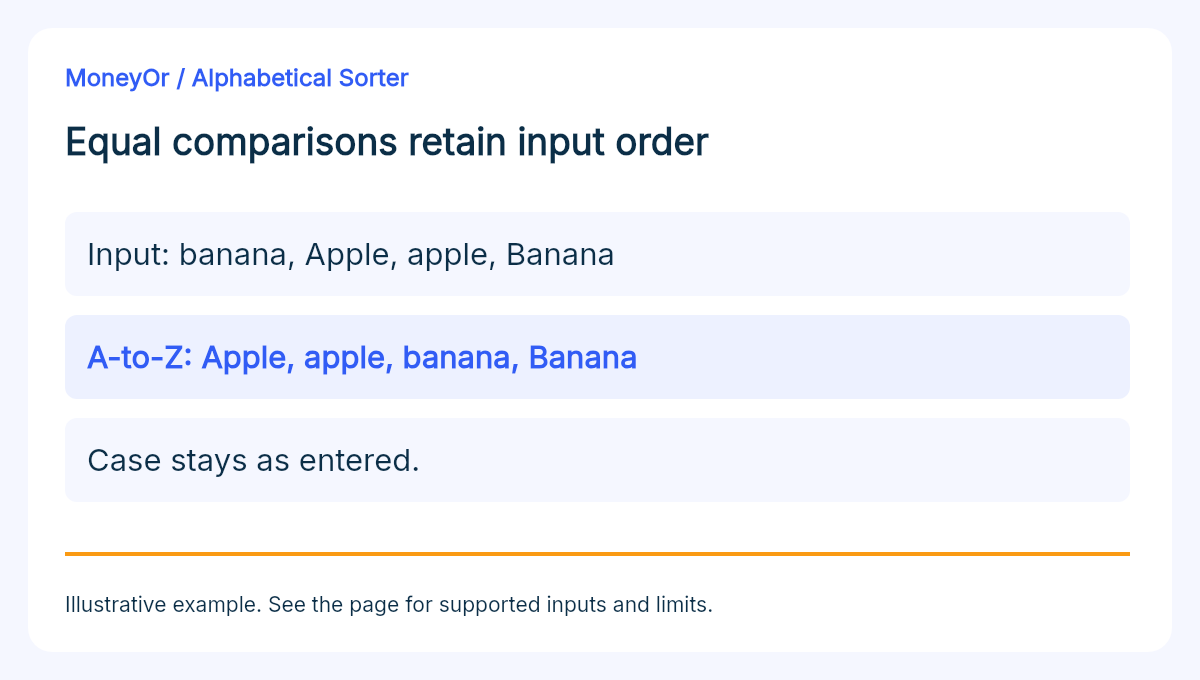
The Alphabetical Sorter preserves the wording of every nonblank row. It can work well for a display list where repeated terms indicate multiple entries. If the variants indicate conflicting labels for the same thing, settle the naming decision first. Giving one version all capitals in the input will not force it ahead of a base-equivalent variant as a separate alphabetical rule.
Alphabetical Sorter: accents and language
The Alphabetical Sorter uses your browser's default locale and sets its sensitivity to the base level. Case differences are generally ignored for ordering. Accent differences can compare equal where they belong to the same base letter under that locale. Some accented letters count as separate letters in certain alphabets. The product has no locale selector, so a directory intended for readers in one specific language may need a sort process with an explicit collation setting.
For example, a team preparing a reading list can keep the authors' names spelled as approved and still use a reference output to check how they group. If collaborators see a different sequence on another machine, record the expected language and collation rules. Changing the spellings just to reproduce a particular order would make the names less useful to readers.
Compare a small group of representative names before sorting a long multilingual list. Include an ordinary capitalisation variant and a few names that use accented letters needed by that audience. Run them in both directions and check the output against the list's editorial style guide. The ECMAScript Internationalization API specification describes how the collation comparison handles base letters, accents and case.
For a library-style index, you may have an explicit rule for introductory articles or honorifics. A title beginning with “The” can belong under a later word according to the index policy. The browser's alphabetical comparison uses the line you entered and cannot infer such an editorial convention. Add a separate sort key in the source table if a label's displayed text must differ from what determines its position. After sorting, show the approved label so the reader can look it up elsewhere without learning a different spelling.
Alphabetical Sorter: blank lines, spaces and duplicates
The Alphabetical Sorter filters out lines whose trimmed text is empty. It preserves the original characters of each remaining line instead of trimming the returned item. This means a line with spaces around a label can still carry those spaces into the result. If a pasted set contains indentation used only for display, the text trimmer can prepare a working copy with the unwanted edge spacing removed.
Exact duplicates are retained. For example, sorting banana, pear and a second banana on separate lines produces two banana entries followed by pear in ascending order. Removing the duplicate would answer a different question. It might also hide meaningful repeated records such as two participants who gave the same response. To produce a list of unique exact lines, use the text deduplicator after deciding how to treat capitalisation and whitespace.
The Alphabetical Sorter returns rows separated by newlines. To check whether the new list has all the entries you expected, compare an original copy with blank rows excluded, then review the sorted rows. The line counter can help cross-check the number of rows using the relevant counting option. A matching count can catch a missed paste, but it cannot verify whether each label belongs to its original group.
How should I prepare a comma-separated or copied list?
Identify the true separator before making changes. If each short label appears between commas and commas never form part of a label, the text splitter can turn those separators into line breaks. Check the result for extra spaces before sorting. If commas appear in names, addresses or quoted fields, use the importing tool responsible for that data format so meaningful commas stay inside the item.
A copied column may contain a header and notes along with the entries. Prepare a plain-text scratch copy and remove those pieces before running the sort. If a number at the beginning is a presentation label and should follow the new order, add new numbering later in the destination editor. Keep identifiers attached when they are part of the record and matter to the reader.
Inspect a sample of the exported lines if you copied from a web table. Several columns may be separated by tabs, and wrapped descriptions can introduce unexpected newlines. Determine whether each physical line still represents one entire record. A free-form text comparison is appropriate once the row boundary is clear. If the copied text splits a record, use a structured export or manually prepare the specific label column you need. This prevents a description or address from being sorted away from its original entry.
After checking the sorted list, decide how its destination expects the entries. A word processor can turn plain lines into a list. A database import may require a format that preserves each field and proper escaping for commas. The text joiner can place a delimiter between reviewed lines for a simple display task. It does not reconstruct a structured file with multiple columns and quoted fields.
Why do labels with embedded numbers sometimes surprise me?
The comparator uses the default lexical treatment of numbers as part of the line text. For example, enter item 2, item 10 and item 1 on three lines. In the checked locale, the ascending result is item 1, item 10, item 2. The 1 in 10 is compared with the 2 in the third label before the rest of the number determines any numerical value.

If the numbers are the entire input, use the number sorter to order them by magnitude. When a record contains a label and a number, keep the number in a separate field and sort by that field in a structured editor. This preserves the connection between the record and its label while giving the expected order for the numeric portion.
Padding an identifier with a leading zero can make similarly structured text easier to scan, but choose that format only if the owner of the identifiers permits it. Some products treat 02 and 2 as different strings. Keep the original ID and its displayed version distinct if numbering is adjusted for a report.
How can I verify a list prepared for publication?
Choose a small sample with early, middle and late alphabetic entries and keep a copy of the unsorted list. Check one or more names with prefixes, punctuation or accents. If your report keeps duplicates, make sure a repeated line appears each time it occurred. Use separate sorting for each group if the original document's headings need to survive.
Review the role of the list. A short glossary can use a reader's language-specific convention. A presentation might keep the highest-priority items first even if their initials are later in the alphabet. The purpose determines whether a plain alphabetical sort is the right layout. Once the order is decided, confirm that the copy you publish contains the same nonblank items as the reviewed source.
Inspect the output after pasting it into its final destination. A visual line wrap can make one entry look like two. Formatting can strip leading spaces or convert the first characters into an automatic list. If the list is an aid to navigation, make the structure clear in the destination and check the visible sequence on a narrow screen.
Finally, record the sorted version and the rule that produced it when the list will be refreshed later. Include the intended direction, treatment of equal entries and which source column supplied the labels. This saves a reviewer from copying only part of a multiword entry when adding new rows. If the finished list is meant to match another published index, check a few items in the middle as well as the extremes. The two indexes might group case or accents differently even though their first and last entries match.
Alphabetical sorter FAQs
Can one item contain two or more words?
Yes. Keep the words on the same line to sort them as one entry. The output preserves the text and spaces within the line.
Do empty rows stay in the result?
No. Empty and whitespace-only rows are omitted. Keep headings and visual spacing outside the sorted list if the published layout needs them.
Does sorting change line capitalisation?
The line text is preserved. The comparison can group case variants together, depending on their other characters, while showing the original upper- and lowercase spelling.
Can I sort by the last word in each line?
The Alphabetical Sorter compares complete lines. Prepare the needed sort key in a separate column or put it at the start of each working line before sorting.
How does this differ from the text sorter?
The text sorter uses the platform's ordinary locale comparison. This page explicitly uses base sensitivity. Try a short list with case variants when the distinction matters to your chosen order.
Can I sort sections while preserving the order of the sections themselves?
Run each section separately and then put its sorted items under the original heading. A combined run treats section headings as ordinary items and can mix items from different groups.
Sources and method notes
The comparison uses browser locale collation with base sensitivity. See the MDN localeCompare reference and the ECMAScript collation specification. Sources checked 26 November 2026. Locale results can differ; examples describe the tested English collation.